Home dashboard
All usersThe home dashboard is the main landing screen after sign-in. It combines personal navigation, upcoming items, team access, announcements, and optional coach analytics shortcuts.
Main controls in the app bar
- Admin icon appears only for system admins.
- Analytics icon opens coach analytics if your user tier is Business or Coach Pass+, otherwise it takes you to Coach Pass.
- Profile icon opens your profile and account settings. A small dot badge appears on the icon when you have an active time-off status.
- Notification bell sits between the profile icon and the menu and opens Notification settings, where each team has its own mute switch. The bell itself says at a glance whether anything is muted: plain when nothing is, with a small dot when some teams are, struck through and dimmed when every team is. See Notifications.
- Overflow menu contains: restore dismissed announcements (when applicable), logout, Coach Pass, Feedback, Check for updates, and About.
The Feedback item opens a dialog where you can submit general feedback, a feature request, a bug report, or a safety concern. Everything but general feedback supports up to three image attachments. A safety concern goes straight to our safety mailbox — see the Child Safety Standards for what we do with it — and is confirmed with a dialog that links to those standards and to the reporting hotline for your country.
The Check for updates item manually re-evaluates whether a newer build of the app is available. If an update is found, a prompt appears. If the app is already current, a brief confirmation shows.
Home tabs
Under the greeting, a compact tab strip splits the dashboard into four tabs:
-
Agenda shows the home content feed.
-
Calendar switches the main area to the calendar component and lets you inspect scheduled items by date.
-
Teams & Groups lists your team and group cards. The tab itself shows a small dot when any team you administer has something waiting for you — a join request, a system admin access request, an open user report, an activity planning waiting on a date, a pending invitation, or a subscription that needs attention. The dot only tells you there is something there; the counts sit on the individual team cards.
-
Discover finds public teams, groups and upcoming events near you. It shows the place it is searching from at the top, and you can tap the map button to search somewhere else entirely. Use the slider to widen or narrow the radius — it reads in kilometres or miles depending on the Units setting on your Culture tab — the filter to choose between teams, events or both, and the sort button to order results by distance or alphabetically. Below the slider, the search field narrows what is already on the list to the teams, groups and events whose name matches what you type — typing a club’s name keeps the club and the sessions it is running. It searches the results in front of you rather than looking further out, so widen the radius first if what you are after is not on the list yet. When the filter is set to All the sort menu also lets you group results, either by team — with each team expanding to the events it is running nearby — or by event, with each event expanding to show the team behind it. Discover asks for your location the first time you use it; if you would rather not share it, pick a location on the map instead. When a search comes back empty you get a Search again button to re-run it; when it is your search field that matches nothing, clearing it brings the rest back. An event row you have not joined yet expands to show its venue on a map, so you can see where it is before deciding — once you are in the team, the row opens the event instead, and the map is on that screen. Press and hold a team’s row to report that team’s profile — its name or description; see Report a message.
Teams and groups appear here when they are public and pinned to a point on the map. Sessions and activities have to clear more: the event itself must be public and carry its own coordinates, and its team must be discoverable and auto-accept join requests. Events imported from an external calendar can appear too, on those same conditions, with the subscription controlling them as a set.
Activity plannings show up here as well, both while they are still collecting votes and after the winning date has been chosen. A planning listed during voting shows its earliest proposed date — the date is exactly what is being decided, so it may change. Joining the group enrols you in the vote, which is why a planning only appears when it adds new members automatically.
See Location and Discover, Public sessions and Discover, Public plannings and Discover, and Show imported events in Discover.
Tapping the app logo while you are already on the home screen refreshes the home data. If you are on another tab, it also returns you to the Agenda tab.
Under the month grid, two shortcuts bring the selected day back to the dates that matter. Today appears whenever the selection has drifted off today, and Next up appears whenever it is not on the day your next event falls on. You only ever see the ones that would actually take you somewhere, so when your next event is later today you get Today on its own.
If you start a new session or activity while a day is selected in the Calendar tab, that selected date can carry into the creation flow so you do not have to pick it again — including a date you landed on through one of those shortcuts.
home-dashboard-teams-android.pnghome-dashboard-teams-ios.png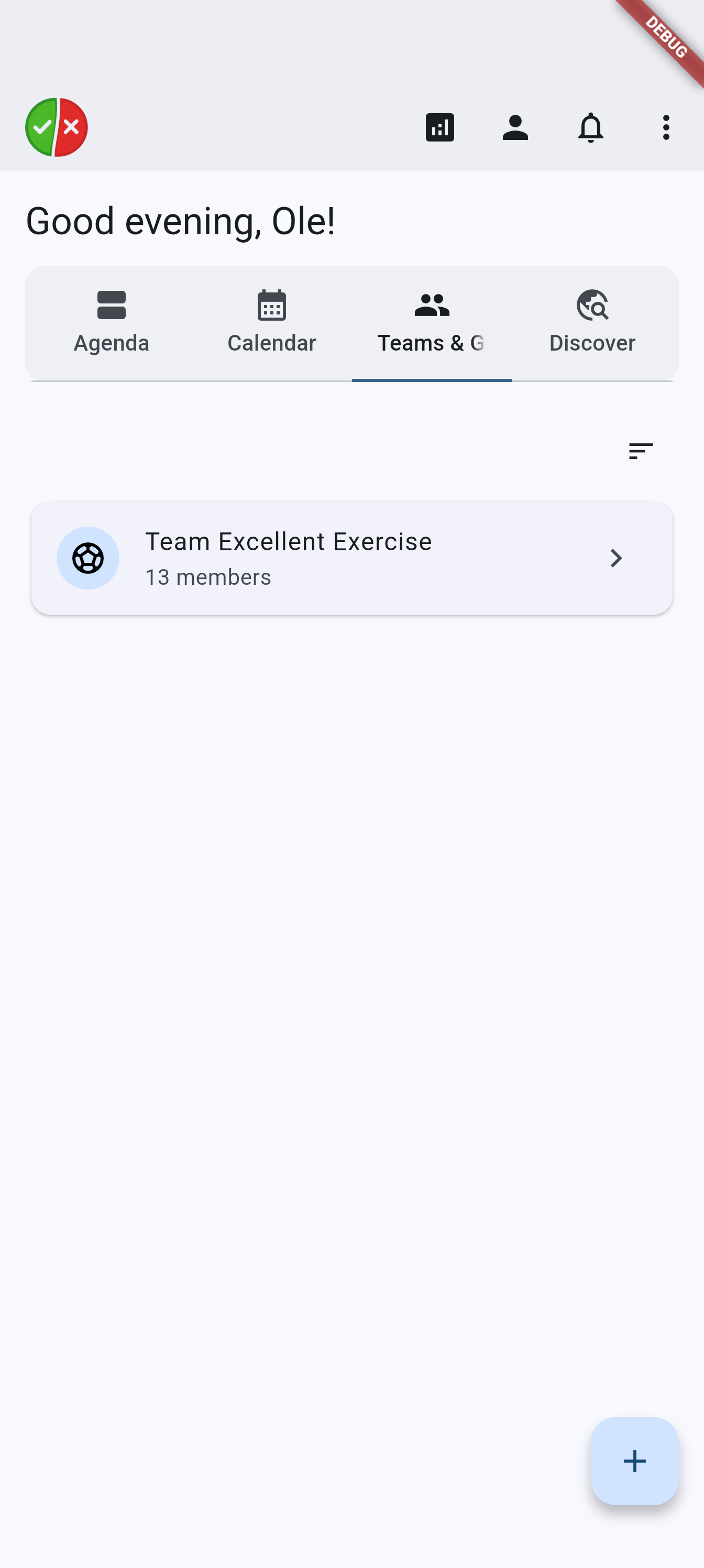
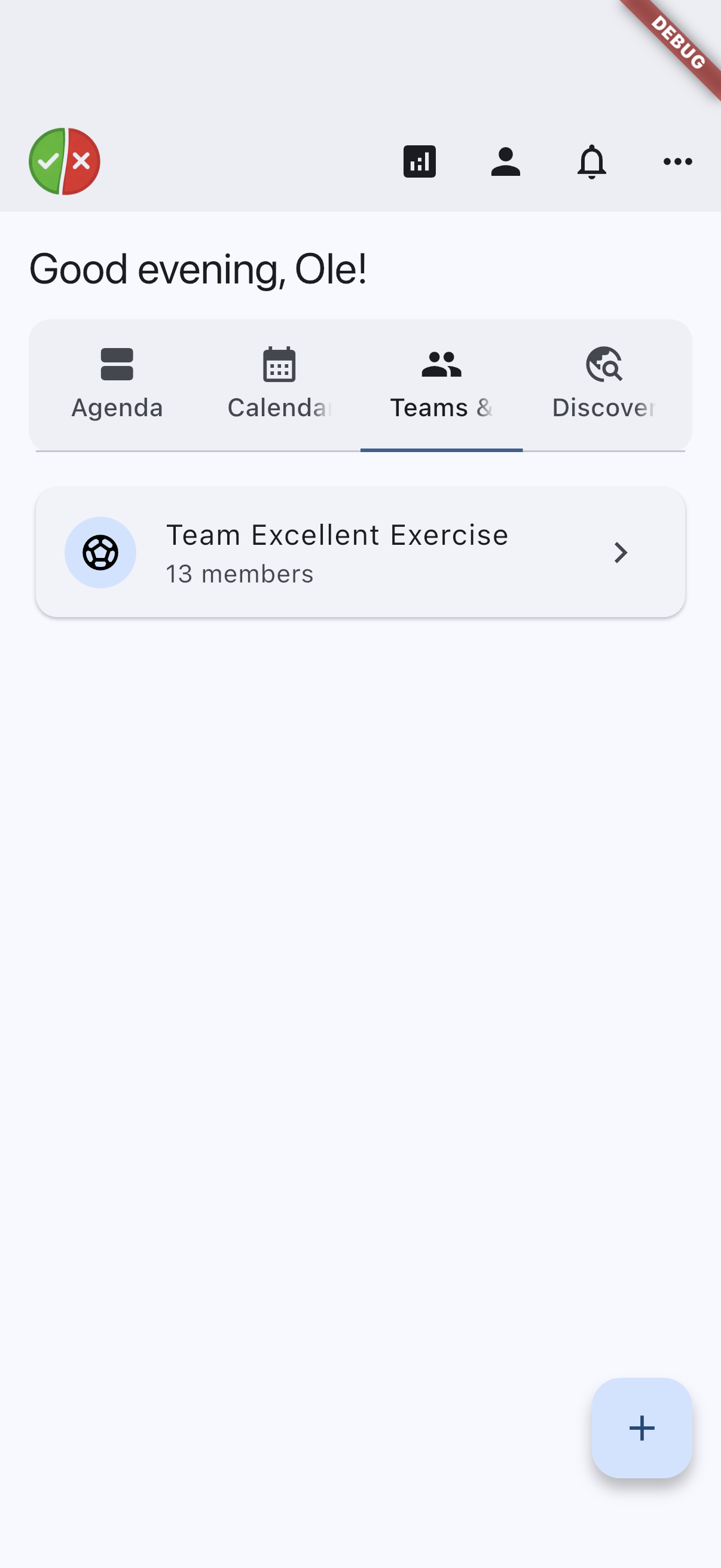
The Teams & Groups tab listing your team and group cards.
home-dashboard-discover-android.pnghome-dashboard-discover-ios.png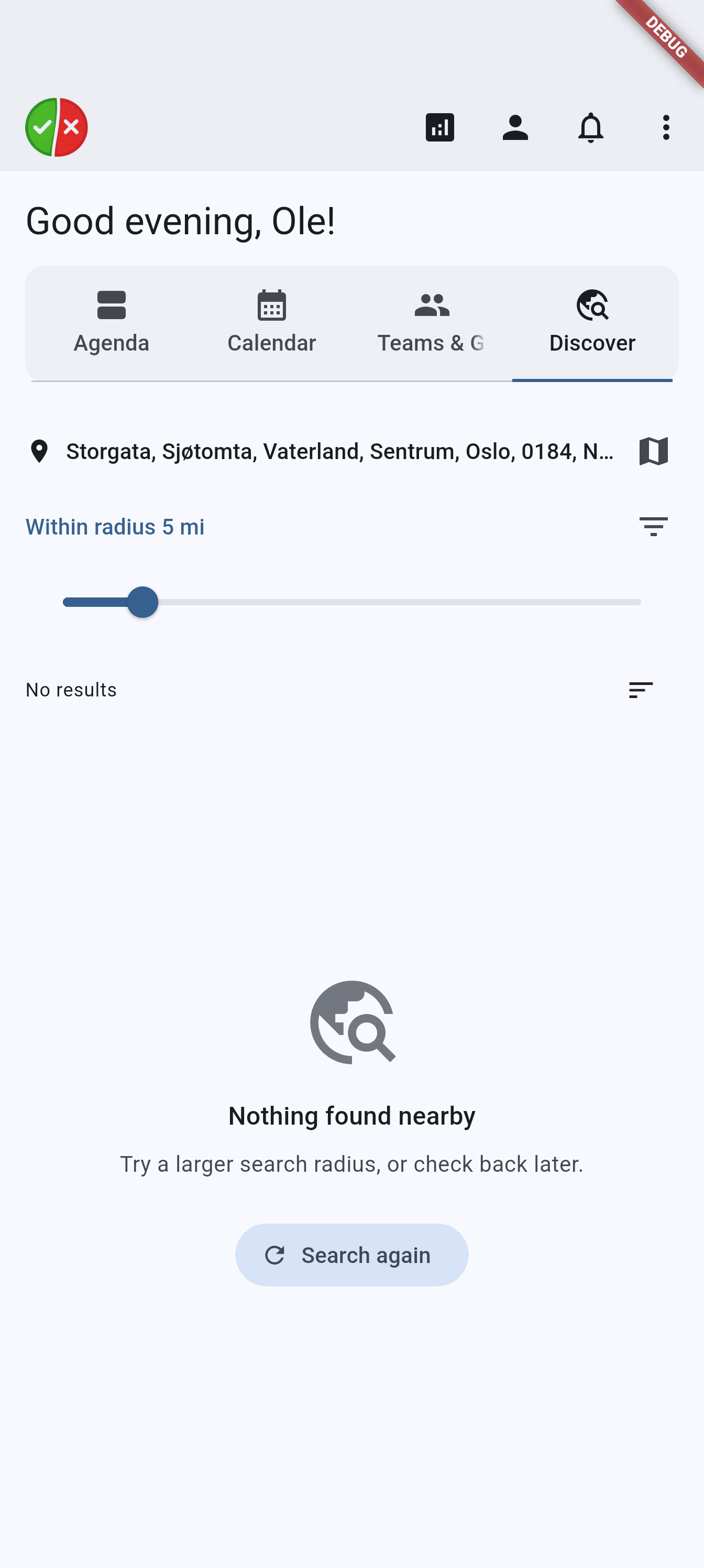
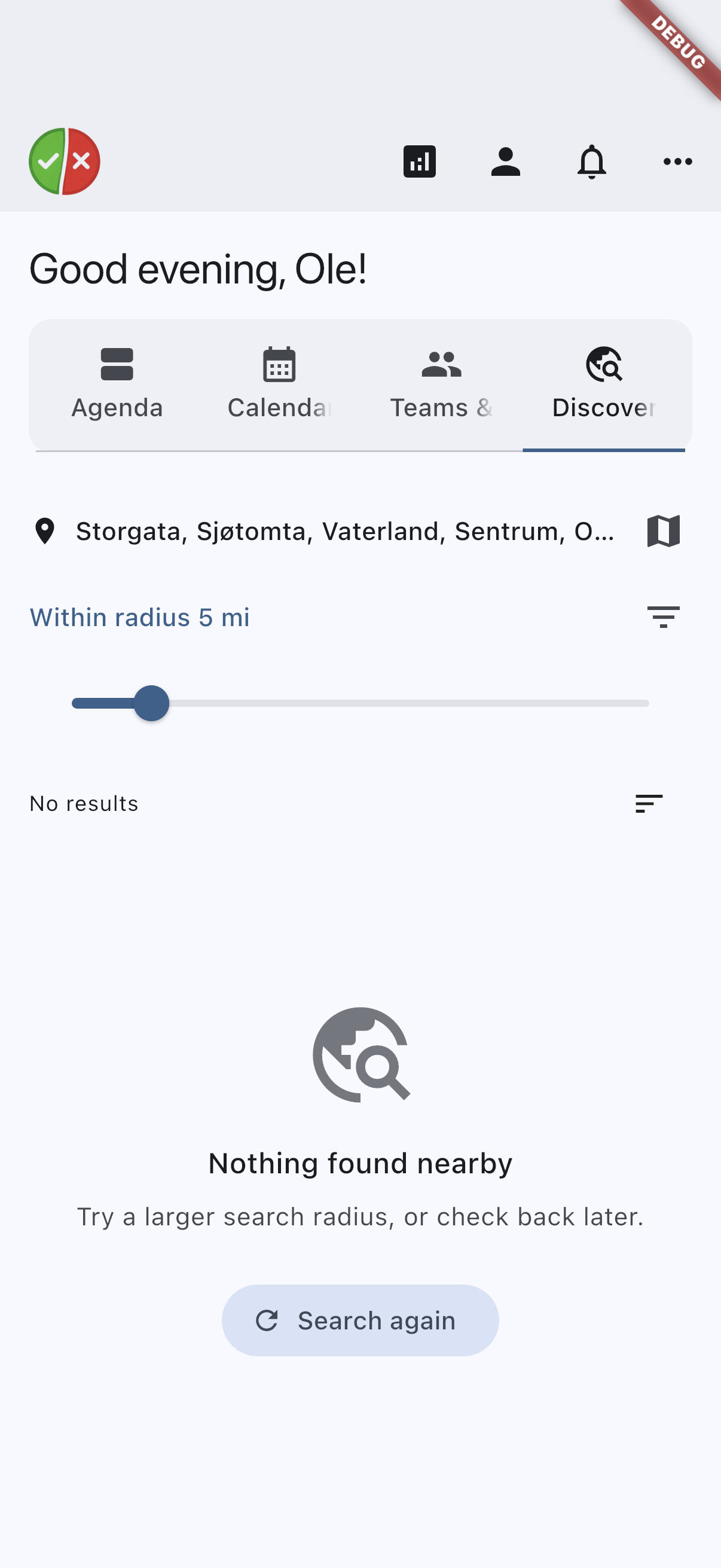
The Discover tab searching for public teams, groups and events near you.
home-discover-filter-sheet-android.pnghome-discover-filter-sheet-ios.png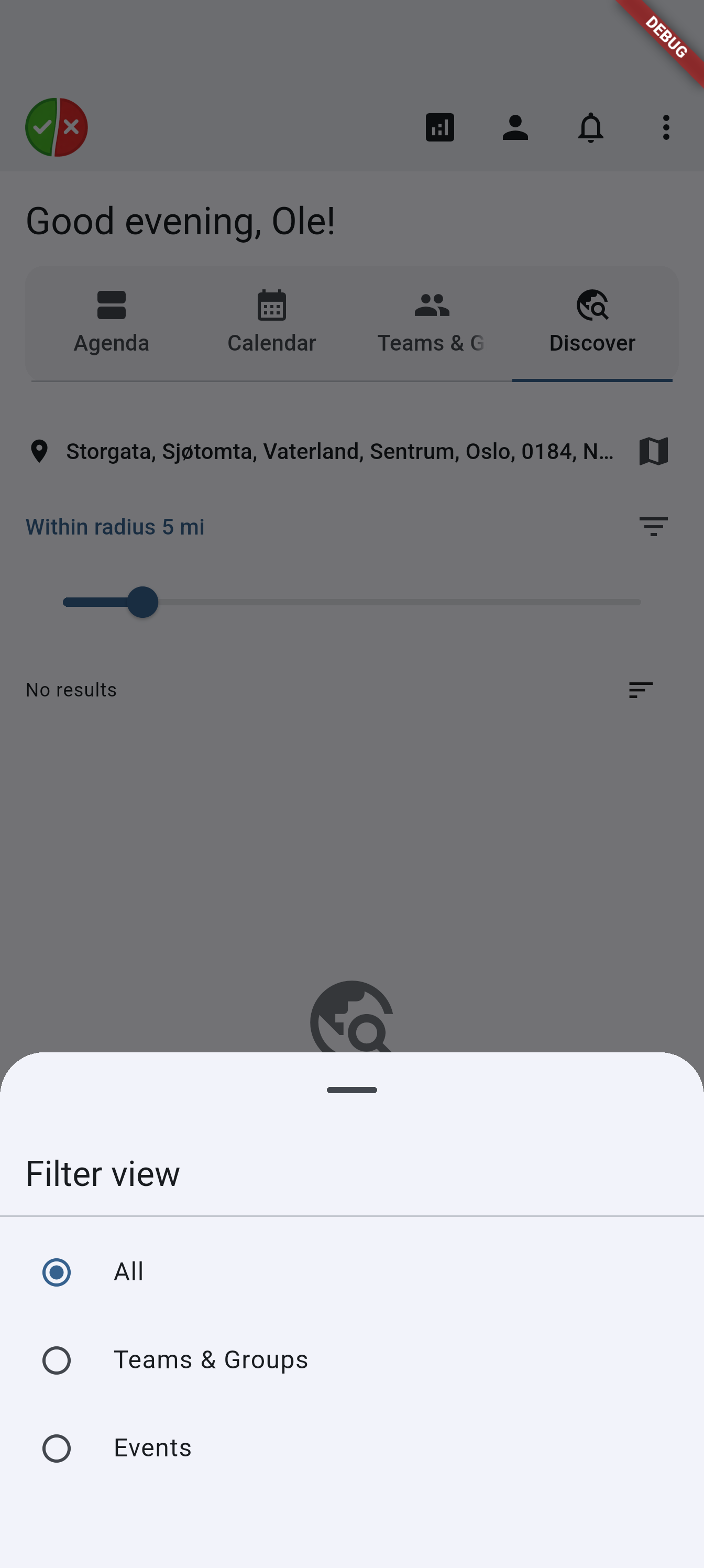
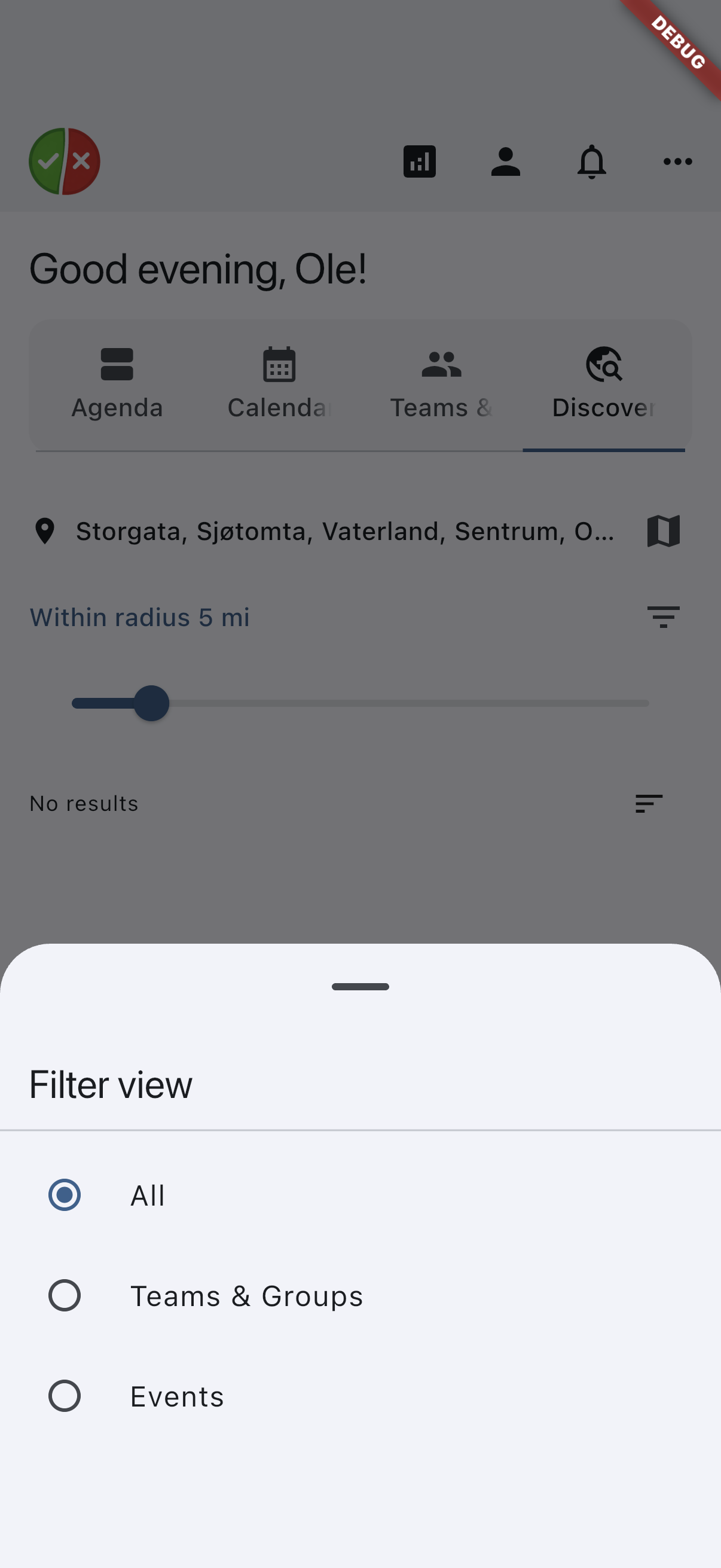
The Discover filter sheet, with the radius slider and the team/event filter.
Filter the agenda view
The Agenda tab has a filter row pinned above the feed. It stays in place while you scroll. The row shows the name of the active filter on the left and a filter icon on the right; tapping the icon opens a Filter view sheet, and the icon gets a highlighted background while any filter other than Default is active.
The available filters are:
- Default — the normal sectioned feed described below, including banners and announcements.
- Next per team/group — the next upcoming event from each of your teams.
- All upcoming — every upcoming event across your teams.
- No response — next per team/group — the next event per team, showing only the ones you have not answered yet. A team whose next event is already answered contributes nothing.
- No response — all — every upcoming event you have not answered yet.
- Attendance to confirm — occurrences waiting for attendance confirmation. This is only populated for group admins in Business-tier teams; for everyone else it is simply empty.
Every filter except Default replaces the sectioned feed with a flat list of event cards sorted by start time — banners, announcements, and the other feed sections only appear under Default. Long lists are capped at the first 50 events, and a notice at the bottom tells you when the list has been cut off.
The filter selection is not saved: the Agenda tab returns to Default the next time you come back to the home screen.
home-list-filter-sheet-android.pnghome-list-filter-sheet-ios.png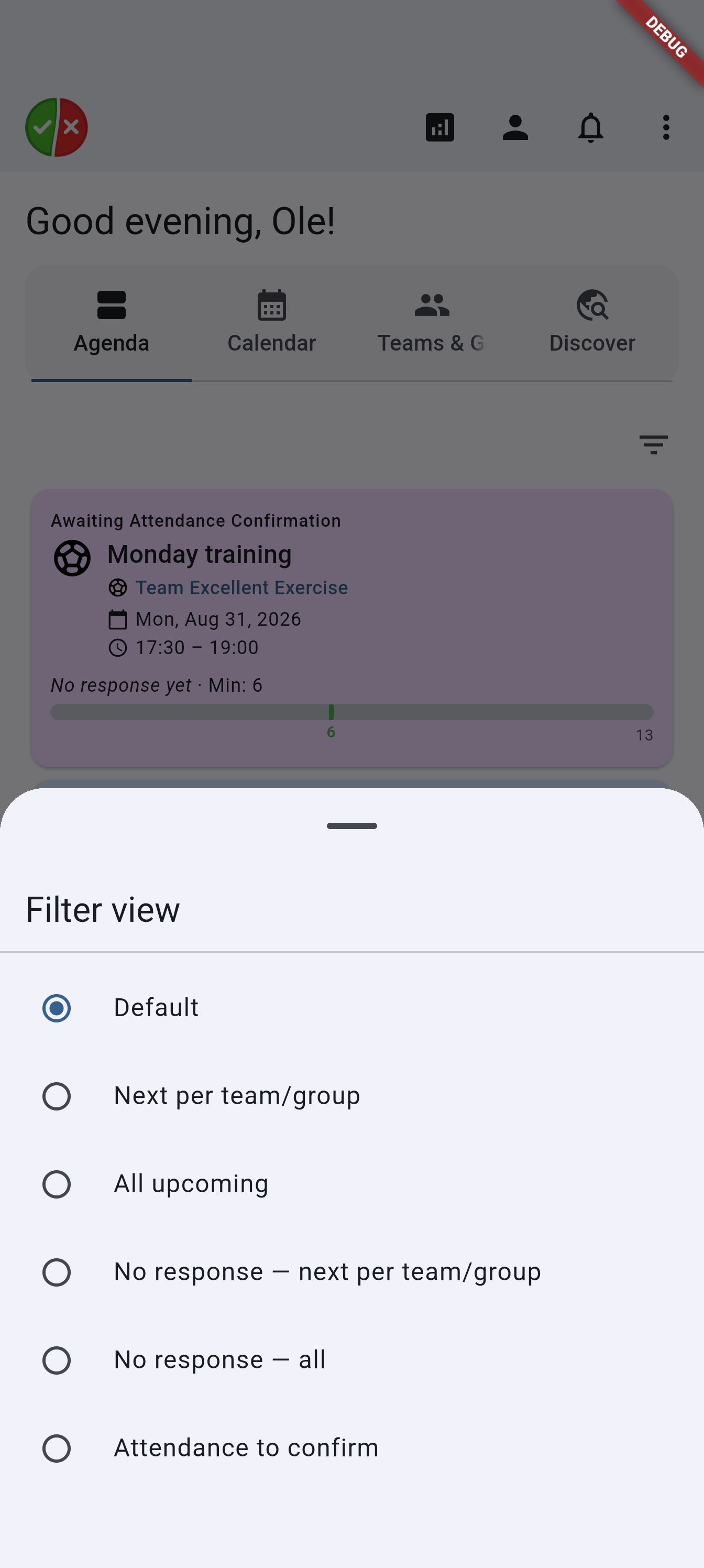
The Filter view sheet for the Agenda tab.
Filter the calendar view
The Calendar tab has its own filter row, in the same place and with the same Filter view sheet, but a different set of options:
- Default — only events that still have something ahead of them.
- Expired events — only the events that have finished.
- All — both.
An event counts as expired once every one of its occurrences has ended, so a repeating session that still has dates to come stays under Default, including the dates it has already been through. Picking Expired events takes you to the most recent past event rather than an empty today, and hides the activity-planning vote markers, which only ever apply to open votes.
The row is hidden when you have nothing scheduled at all — there would be nothing to filter — but it stays put when a filter simply finds no matches, so you can always switch back. This choice is separate from the Agenda tab’s filter, and it is likewise not saved.
home-dashboard-calendar-android.pnghome-dashboard-calendar-ios.png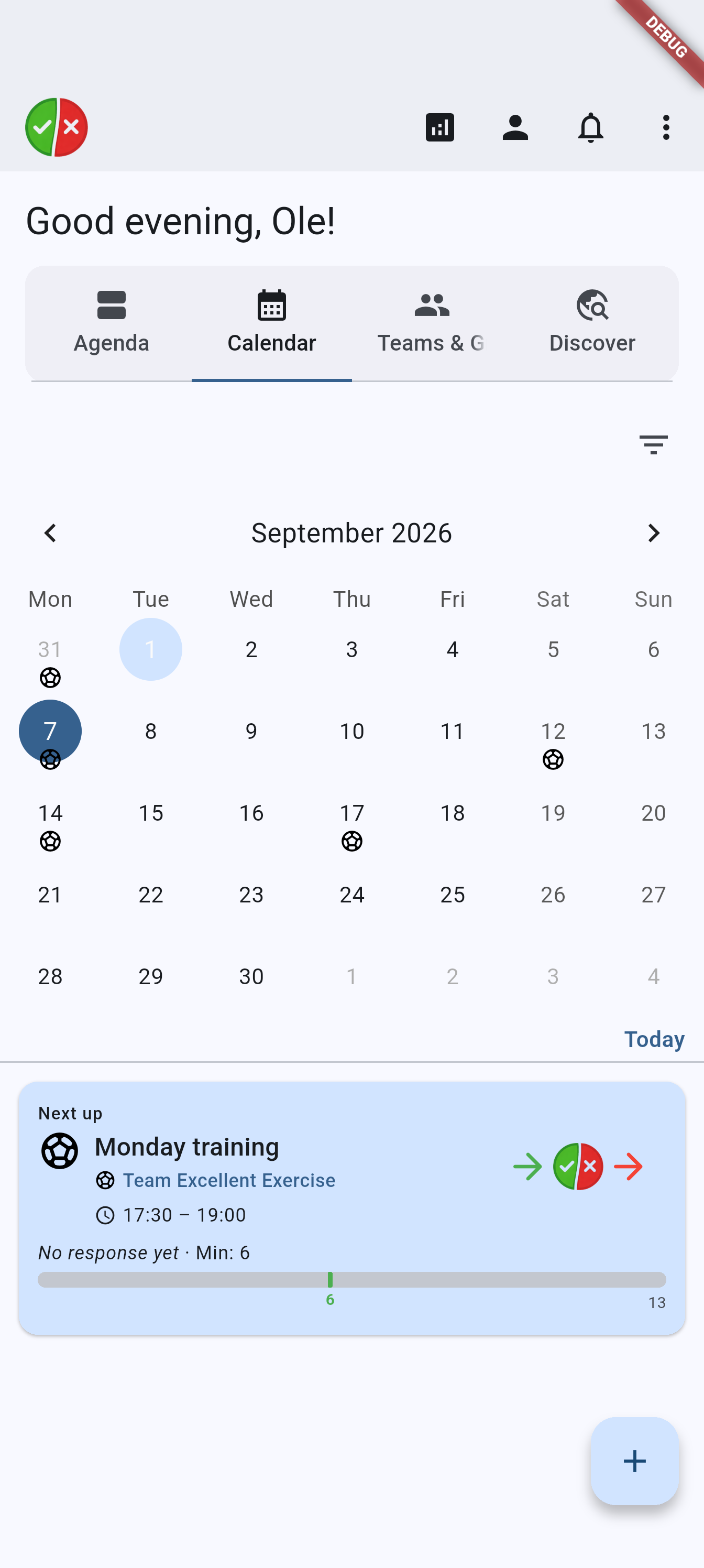
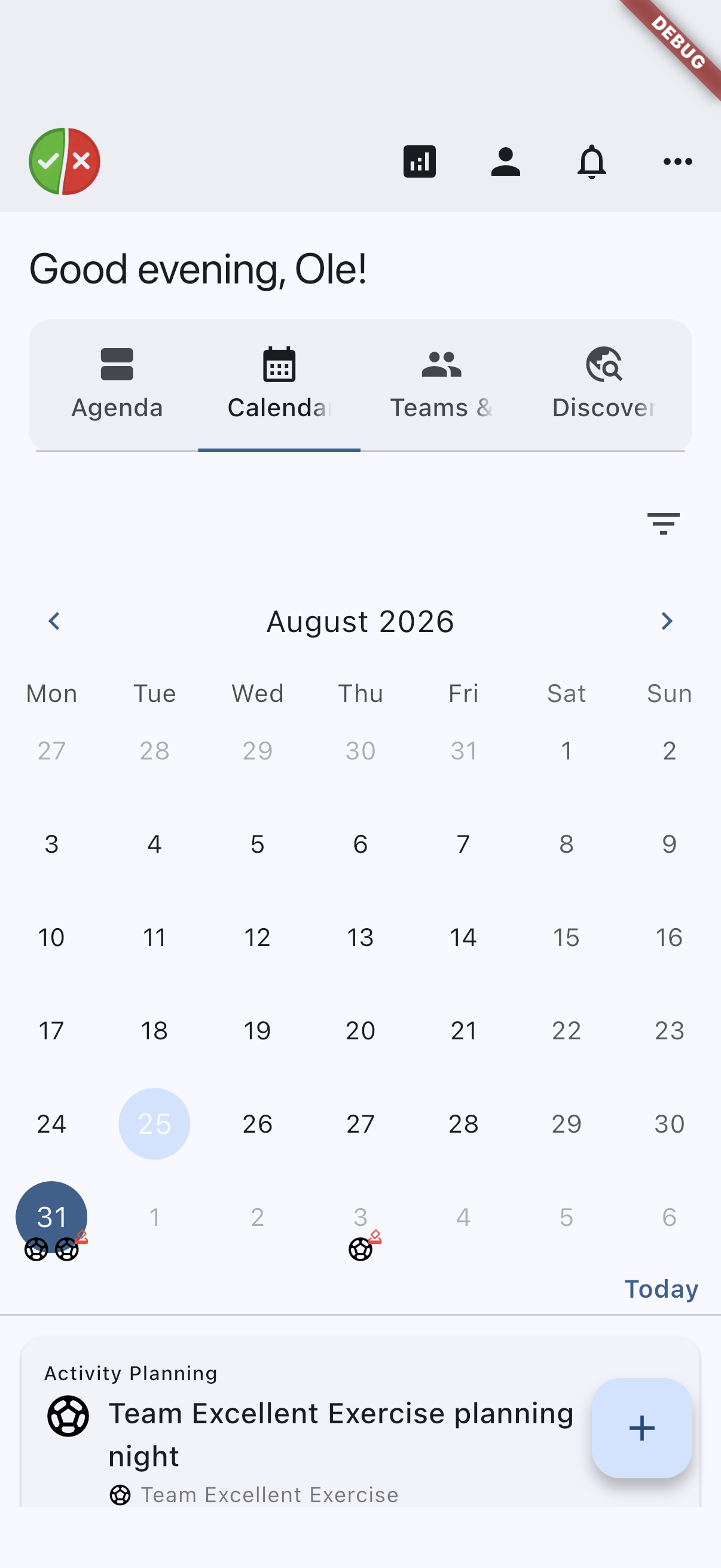
The Calendar tab, with the month grid and the Today and Next up shortcuts.
What you see in the home feed
- Personalized greeting that uses your first name when available. Depending on the current app session, it can show either a time-of-day message or a simple Hi or Hello. If the time-of-day greeting is active, it updates automatically when the dashboard moves from morning to afternoon or evening.
- Confirm your email address banner, first of all, while you have registered with an email address you have not confirmed yet. It cannot be dismissed — it goes when you enter the code. See Email verification.
- Time-off banner when you have an active time-off status.
- Personal admin notices when the system has sent you a notice about an account action (such as a suspension, unsuspension, or Coach Pass grant). These appear between the time-off banner and system announcements and can be dismissed individually. They are separate from system announcements and group announcements.
- System announcements from system administrators.
- Group announcements from group admins in your teams.
- Polls banner with the open polls still waiting for your answer. See Polls.
- Next-up cards and upcoming events.
- Activity planning cards when you are part of active plannings.
Your team and group cards live on the Teams & Groups tab, together with what is waiting on you personally: Invitations you have received, each with Accept and Decline, sit above My requests — the teams you have asked to join, each marked Pending approval. Open one and choose Withdraw request to take it back before an admin acts on it. When you administer a team, its card carries a numbered badge for each kind of thing waiting on you: a shield for system admin access requests, a people icon for join requests, and a flag for open user reports. Anything else still to deal with — an activity planning waiting on a date, a pending invitation, or a subscription needing attention — is gathered into a single dot rather than a fourth number. The tab label above carries a dot whenever any of your teams is marked, so you can see there is something waiting without switching tabs.
Cards that can mix content from several groups, such as next-up, cancelled, awaiting-attendance, and activity-planning cards, show the group’s icon before the group name so you can identify the source team quickly.
These cards also keep any short status or section label above the main title, which makes the icon, title, and group source easier to scan in busy feeds.
Upcoming events panel
Below the Next up block the app can optionally show additional upcoming occurrences from later days. This panel is hidden by default. To turn it on, go to Profile → Per Device → Theme and set Events to show to any value other than None.
- Count mode (1–5): shows that many of the next individual occurrences after the first event day.
- Window mode (following day / 2 days / 3 days / week): shows every occurrence whose date falls within that calendar-day window after the first event day.
A single occurrence renders as a full card with join/decline controls. Two or more render as a compact table, one row each: the event’s icon, then its name and team, then the date and time on the right. The icon and name sit in the same columns the Next up card above uses, so the two blocks line up. Four or more collapse to three rows with an expandable “+N more” link.
Use the plus button
What the + button does depends on the tab you are on:
- On the Agenda and Calendar tabs it opens a menu: New event, New Quick Quiz — which asks which team it is for — and a search across teams, groups and events.
- On the Discover tab it launches onboarding for a new session or activity.
- On the Teams & Groups tab it opens a menu with team actions: create a new team or group, Search for existing Teams & Groups and Events, or join through an invite code. The button is hidden on this tab when your plan’s team limit is reached.
The search screen
The search entry on either menu opens one screen that searches public teams and groups and upcoming events together.
- The kind filter chooses what you are looking for: All, Teams & Groups, or Events. It leads — the rest of the screen adjusts to it.
- A match dropdown decides how the title is compared: contains, starts with, ends with, or exact.
- Two day boxes narrow events to a date range. Either one works on its own, and they are order-independent. They disappear while the filter is teams-only, because a team has no date, and they come back with your days intact when you widen the filter again.
- On All the results can also be grouped, the same way as in Discover. A narrower filter has nothing to group, so the option is only offered on All.
- Press and hold a team’s row to report that team’s profile, the same way as in Discover.
Opening search from the Calendar tab carries the day you had selected into the day filter, so you do not have to type it again.
This searches everything public, which is what separates it from Discover: Discover is a map search bounded by a radius around a place, while this one is a title search with no distance limit.
Restore dismissed announcements
If you dismiss a still-active system announcement, group announcement, or personal admin notice, it does not disappear permanently. The home overflow menu exposes a restore action whenever there are active announcements you previously dismissed. The restore action restores all three types at once.
App updates
The app checks for available updates on launch, and from Check for updates in the home menu. Two types of update prompt can appear:
- Optional update — a dismissible banner at the top of the screen when a newer version is available. Tap Update now to go to the store, or dismiss it for the rest of the session.
- Required update — a full-screen gate that blocks the app when the installed version is below the minimum supported one. The gate cannot be dismissed; you must update to continue.
You are only told about a version your own channel can actually install, so a build still waiting to be released to testers does not produce a prompt. The required gate can also appear the moment the server stops supporting your version, without waiting for the next update check.
You can also trigger a manual check from the home overflow menu using Check for updates. If the app is already current, a brief snackbar confirms it.
The analytics icon in the top app bar is a user-level shortcut. It is tied to your effective coach tier, not to the tier of a specific team.
Common tasks from the home screen
- Open a team or group from the Teams & Groups tab.
- Tap the + button:
- On the Agenda, Calendar, or Discover tab: start a new session or activity (onboarding wizard).
- On the Teams & Groups tab: create a new team or group, search for existing teams, groups and events, or join via invite code.
- Filter the Agenda tab to the events that need your answer.
- Restore dismissed announcements.
- Move to your profile.
- Enter coach analytics or the Coach Pass purchase flow.
The home dashboard is also where system announcements, group-scoped activity summaries, and attendance follow-up cards come back into view after sign-in, so it is the fastest place to reorient after time away from the app.
home-dashboard-list-android.pnghome-dashboard-list-ios.png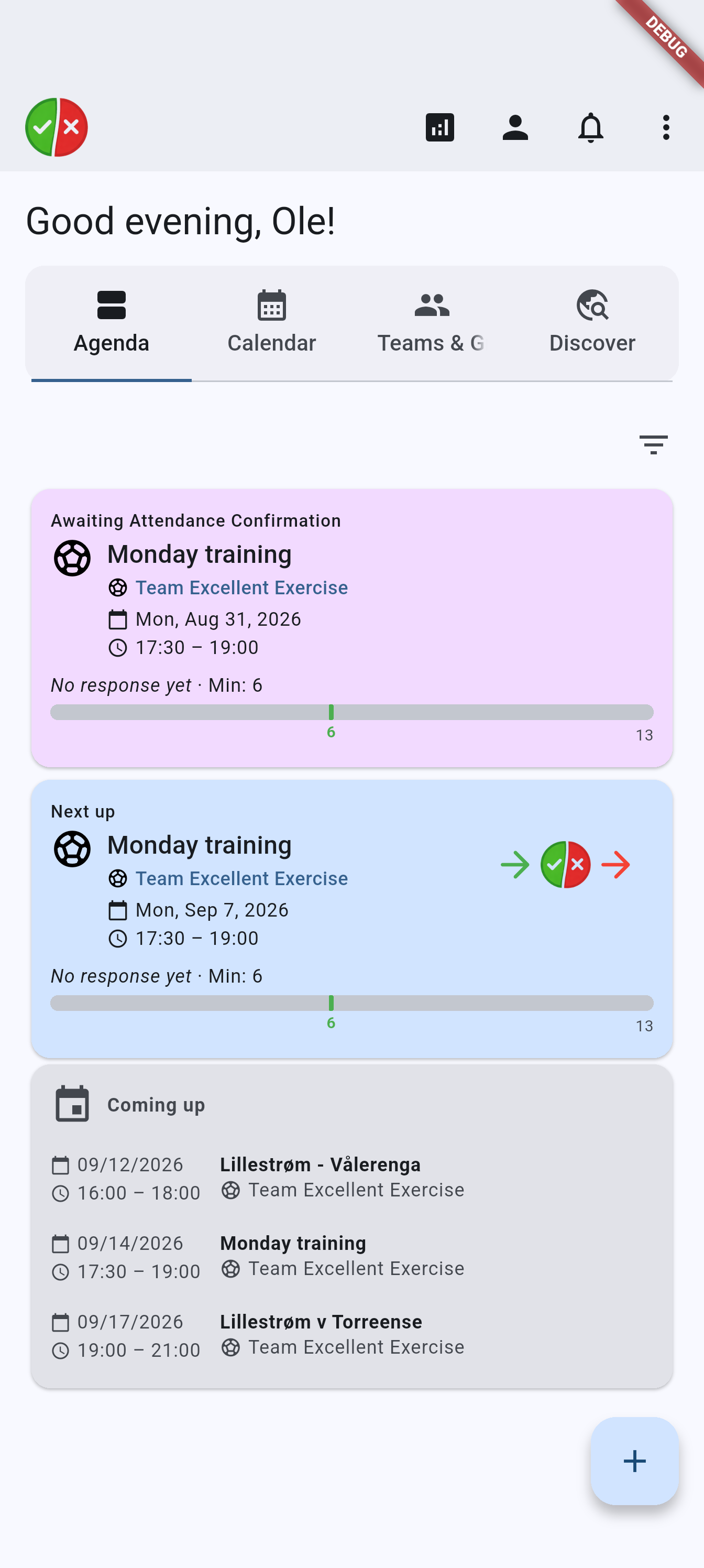
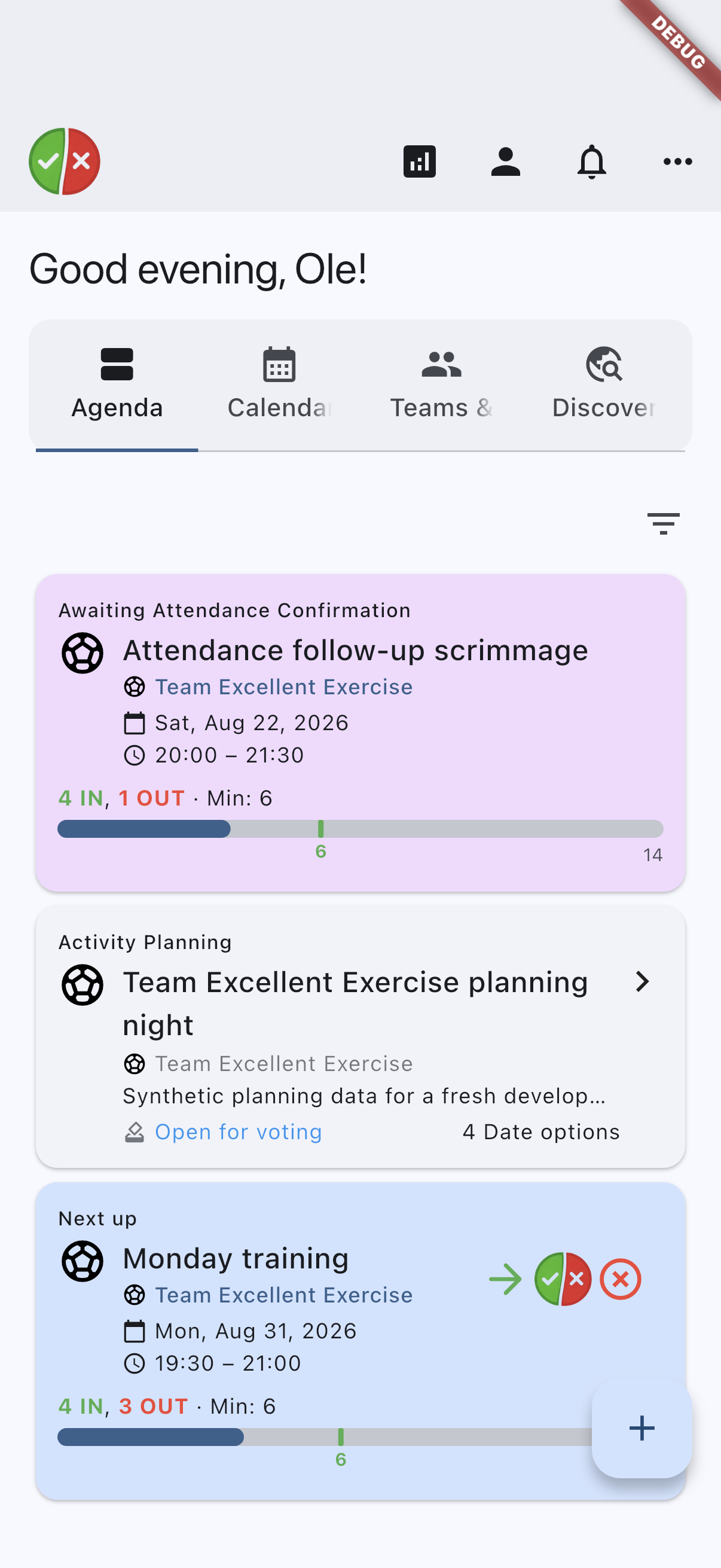
Home dashboard in Agenda view with attendance follow-up cards, next-up content, and team cards visible together.
Related pages
- Teams and groups for the group and team screens you open from the dashboard.
- Events and attendance for the next-up, RSVP, and attendance cards that appear in the feed.
- Activity planning for the planning cards shown when your groups are voting on dates.
- Profile and security for the settings opened from the profile button.