Notifications
All usersInOrOut sends push notifications to keep you up to date with events, group activity, reminders, and planning — all translated into your preferred language.
Two ways to turn things down
There are two independent controls, on two different axes:
- What reaches this device — a master switch and ten category toggles, stored per device. See below.
- Which teams you hear from — a mute per team, stored per user and therefore the same on every device you sign in on. See Mute a single team.
Notification categories
The categories live on Profile → Per Device → Notifications. All notifications is the master at the top: with it off, no push reaches this device at all, including notification types that have no category of their own. The category toggles below it only apply while the master is on — they stay visible but greyed out when it is off, so turning the master back on restores exactly the set you had chosen rather than switching everything on.
| Toggle | What it covers |
|---|---|
| All notifications | The master switch for this device — turns every notification off |
| Event notifications | New events and cancellations |
| Reminders | Upcoming event reminders |
| Planning and voting | Date voting and voting deadlines |
| Polls | New polls, and updates to them |
| Your participation | Waiting-list offers, prize draws and answers set by an admin |
| Chat notifications | New messages in group chat |
| Group notifications | Invitations, join requests and membership changes |
| Announcements | Notices from your groups and from InOrOut |
| Forum | Decisions on your Forum posts, and a daily summary of new posts |
| Account and billing | Your account, subscription and payments |
Account and billing used to be called Admin. It was renamed because “Admin” read as “notifications from admins”, which invited people to switch off their own billing alerts along with team broadcasts. Broadcast announcements sit under Announcements instead.
Under Chat notifications, Show message previews decides what a chat notification shows on this device’s lock screen. On, it names who wrote and shows the start of the message. Off, it says only which team or group and how many messages are waiting — useful on a phone others can see. It is on by default, and does nothing while chat notifications are off.
Your participation was split out of Event notifications, which had become a catch-all. It carries the notices that are about you rather than about the calendar: a waiting-list seat offered to you, a prize you won, an answer an admin set on your behalf. These are personal and time-boxed — a seat offer expires in minutes — so silencing the general run of event traffic should not cost you your seat. If you had already switched Event notifications off, this new toggle starts off too, so nothing you had opted out of comes back.
Open notification settings
- Open Profile.
- Go to the Per Device tab and its Notifications sub-tab.
- Set the master switch, then each category, as you like it. Changes are saved when you save the profile.
When a category is off, the app stops sending push notifications of that type to this device. The underlying activity still exists inside the app when you open the relevant screen.
If your phone’s own notification permission is off, a Notifications are blocked banner at the top of the sub-tab says so — none of the switches below it can deliver anything until you allow notifications for InOrOut in the phone’s settings.
The master switch and the category toggles belong to the device you set them on, not to your account. Silencing chat on your phone leaves chat notifications arriving on your tablet, so set each device the way you want that device to behave.
Per-team mutes work the other way round: they are per user and follow you to every device.
Mute a single team
When one team is noisier than the rest, mute that team instead of a whole category. A mute is stored per user, so it holds on every device you sign in on, and it suppresses that team’s notifications only. Account and billing notices are never affected — they do not belong to a team, so no mute can filter them out.
Where to find it
- The bell in the home screen’s app bar opens the notification settings screen, which lists every team you belong to with a switch each. The bell itself reports the state at a glance: a plain bell when nothing is muted, a bell with a small dot when some teams are muted, and a struck-through, dimmed bell when every team is.
- The bell on a team’s own page opens the same control for just that team, so you can silence a busy team where the noise actually is instead of going looking for it in a list.
The switch reads as “notifications from this team are on”, the same direction as every other switch in the app — so muting a team means switching it off.
Mute for a while
Once a team is muted, a Mute for list appears under its switch:
- Until I turn it back on — the default, and what a plain switch-off has always meant.
- 1 hour, 4 hours, 12 hours, 1 day, 2 days, or 7 days.
Choose a duration and the screen shows Muted until with the time it lapses — the time alone when that is later today, the date and time when it is further out. The mute lifts by itself the moment it is due; nothing has to run for that to happen, and you do not have to remember to switch the team back on.
The row at the bottom of the notification settings screen leads to the per-device toggles, since the two settings answer different questions.
Translated notifications
Push notifications arrive in the language you have set as your culture in your profile. The app supports twelve languages:
- English, Norwegian, Swedish, Danish, Finnish, German, French, Spanish, Portuguese, Italian, Dutch, and Polish.
Dates, times, and durations in notification text are also formatted according to your language — for example, a reminder might say “Starting in 2 hours” in English or “Starter om 2 timer” in Norwegian.
Translated emails
Transactional emails — such as password reset codes, welcome messages, and email change notifications — are also sent in your profile language. The subject line, greeting, and body text all follow your culture setting.
Event notifications
When a group admin creates an event, all group members receive a notification with the event title and the team’s catch-phrase — “Are you IN or OUT?” — translated into each member’s language.
Notification types
Admins can choose between two types of event notifications when creating or editing an event:
- Request attendance response — Sent to all members (or only to those who have not yet responded). This notification asks members to join or decline the event.
- Friendly reminder — Sent only to members who are currently IN or have not responded yet (not to members who are OUT). Only one friendly reminder per event is allowed. If a decision deadline is set, the friendly reminder cannot be scheduled within 15 minutes before the deadline.
Each notification in the event form displays its type and who receives it. Friendly reminders show “IN + No response”. Request attendance notifications show either “All members” or “Non-responders only”.
Reminders and deadlines
Reminders are sent automatically based on the timing configured by the admin. You will receive them in advance of the event so you have time to respond.
If a decision deadline is set and you have not responded, the app sends a reminder before the deadline. At the deadline, the result notification tells you whether the event is confirmed or cancelled. You can still respond afterwards.
Cancelled occurrences also generate event notifications so members do not keep following an outdated date.
Calendar feeds importing as drafts
A calendar subscription set to import new events as drafts notifies the group’s admins instead of the whole group, because a draft is not visible to members yet. The notification says how many events are waiting and opens the subscription’s events screen, where each one is published or discarded. See Calendar subscriptions.
While a feed imports as drafts, members hear nothing from it until an admin publishes an event.
Group, announcement, and account notifications
- Group notifications cover invitations, join requests, and membership changes, so you know when you have been invited or when a pending request was approved or declined. Admins also get one here when a member reports a chat message.
- Announcements cover notices posted by your teams and messages sent by InOrOut itself.
- Account and billing covers your own account: suspension notices, Coach Pass, time off set by an admin (including the notice when a time-off period ends), subscriptions, and payments. These never carry a team, so a per-team mute never silences them.
Activity planning notifications
Activity planning uses a voting workflow. When a new plan is created, invited members receive a notification asking them to vote on proposed dates. Vote reminders are sent if you have not voted and the deadline is approaching.
Once voting concludes, participants are notified of the outcome — whether a date was confirmed, the admin needs to choose, or the plan did not meet its requirements.
Forum notifications
When an admin approves or rejects something you sent in to the Forum, you hear about it right away. Everything else arrives as one summary per team at 18:00 Norwegian time: members get the number of posts published that day, not counting their own, and admins get the number of posts waiting for their review. A day with nothing new sends nothing. Tapping a Forum notification opens the team on its Forum tab.
Open the right screen from a notification
If the app is in the background or fully closed, tapping a notification reopens InOrOut and takes you to the related event, group, or planning screen when that route is available.
Foreground notifications
When the app is open and a notification arrives, it appears as a brief message at the bottom of the screen. If the notification is related to an event or group, a “View” button lets you navigate directly to that screen.
notification-preferences-android.pngnotification-preferences-ios.png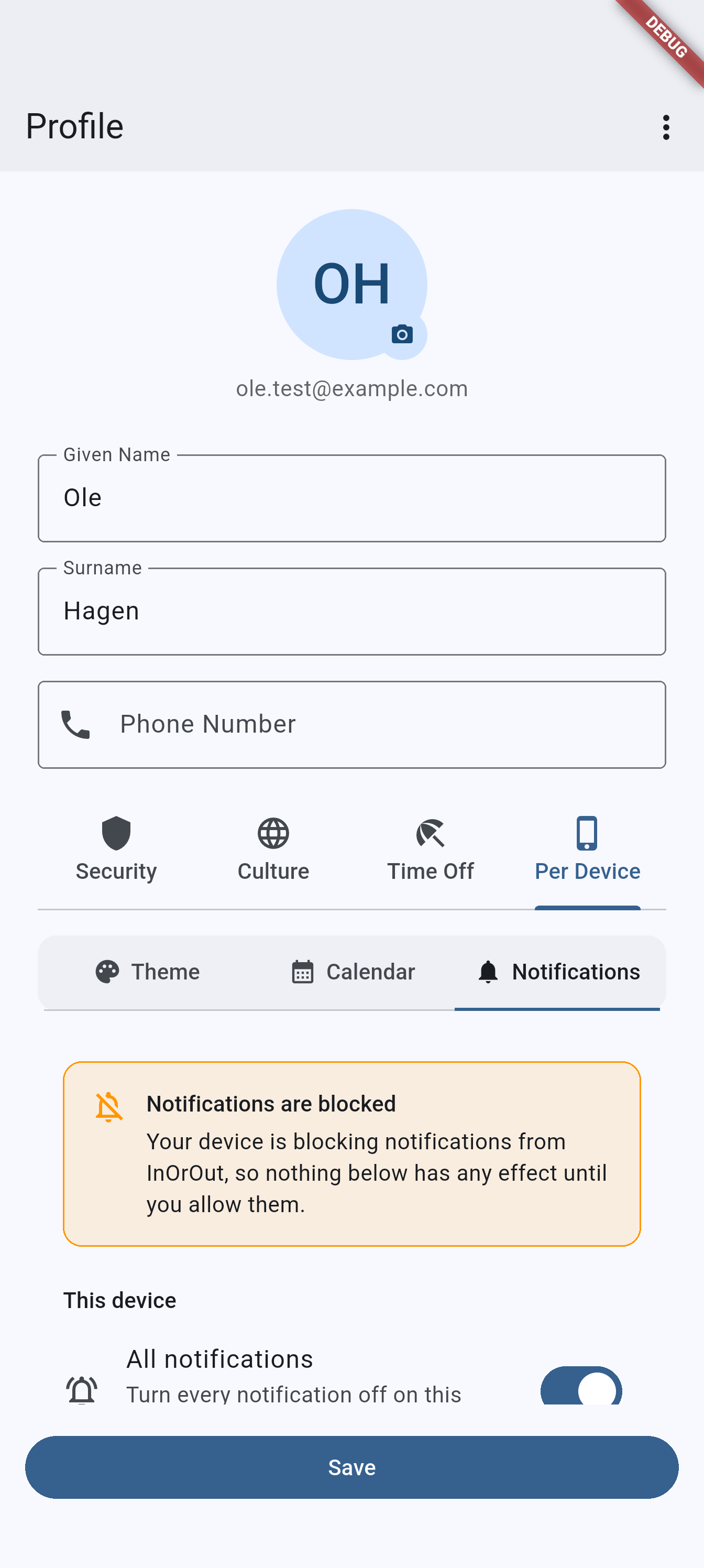
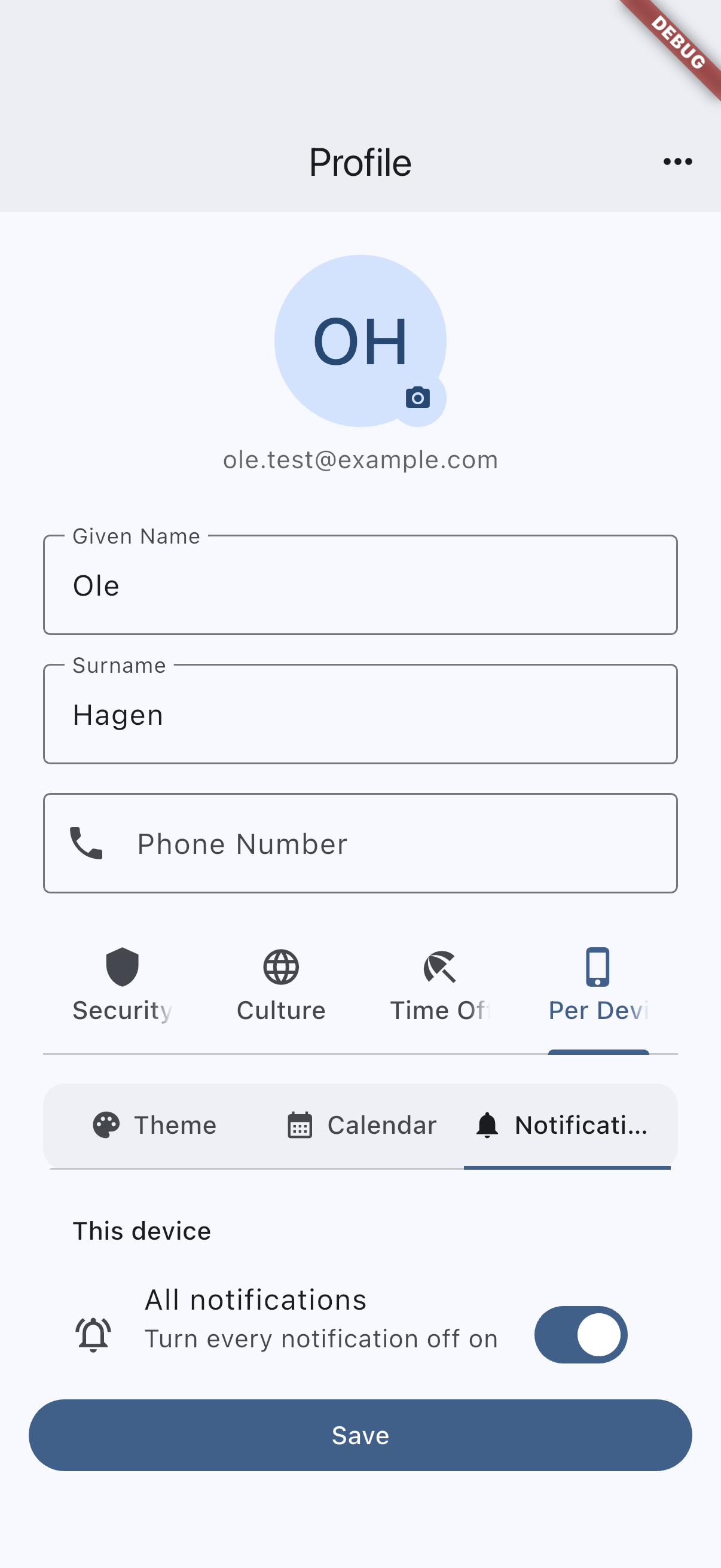
Recommended capture: the notification preferences screen showing the master switch and the category toggles.
Related pages
- Profile and security for the profile area where users reach notification settings and culture preferences.
- Events and attendance for the event and reminder flows that generate many notifications.
- Chat and announcements for other major notification sources inside a group.